

Blog
How to Choose the Best Industrial PC Monitor in 2026?
In 2026, choosing an Industrial Pc Monitor is less about screen size alone and more about matching the display to its working environment. A bright control room, a washdown area, and a vibrating production line place very different demands on a panel. A specification sheet can help, but it cannot reveal every daily inconvenience. Glare matters. So does glove use.
This guide examines the factors that shape a dependable choice: screen size and resolution, brightness, touch technology, operating temperature, ingress protection, mounting options, and available connections. It also considers how operators actually interact with the display, from reading alarms across a factory floor to tapping controls with protective gloves. Small details, such as bezel design or cable clearance, can affect installation and maintenance more than expected. They are easy to overlook.
No single monitor is best for every facility. A high-brightness model may be unnecessary indoors, while a low-cost touchscreen can frustrate operators when used with gloves or frequent cleaning. Buyers should compare documented specifications, confirm compatibility with their industrial computer, and ask suppliers about warranty and service support. Where possible, test the intended model under real lighting and workload conditions before deployment. That extra step takes time. It can prevent a costly mismatch. Some needs remain hard to predict, especially when a line changes after installation. The aim here is not to promise a perfect screen, but to help you make a reasoned choice that fits the site, users, and budget.
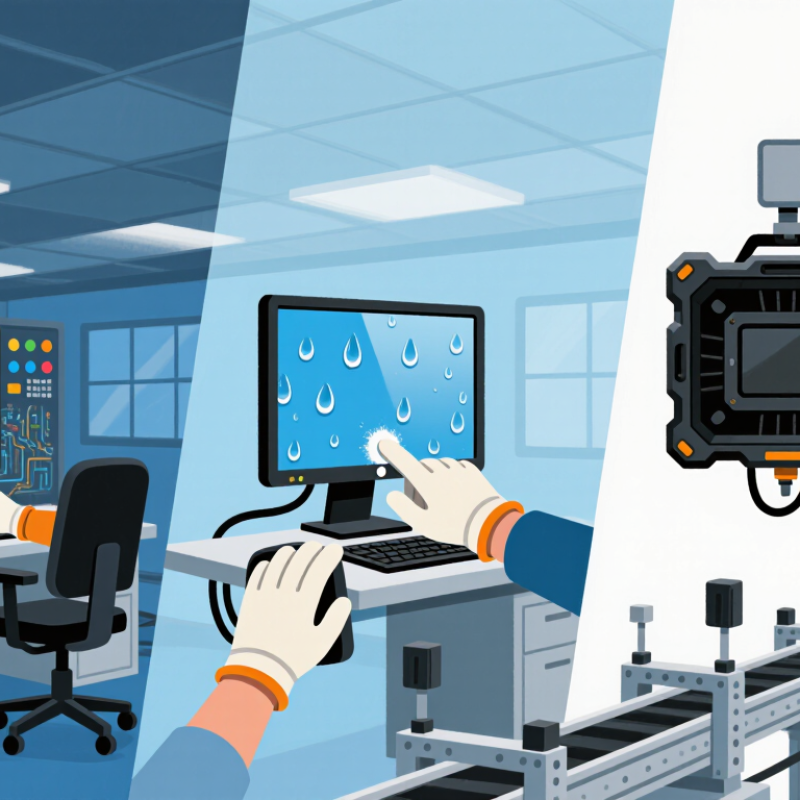
Understanding Industrial PC Monitors and Their Operating Environments
An industrial PC monitor is not simply a brighter office display. It must stay readable and responsive where heat, dust, vibration, or moisture are part of daily operation. That setting matters. A unit beside a washdown line faces different risks from one inside a climate-controlled control room. Sites get messy.
Observe the installation before comparing specifications. Check ambient temperature, direct sunlight, airborne particles, and vibration from nearby motors. A screen under overhead lights may need higher brightness and an anti-glare surface. In a dusty workshop, sealed front surfaces can make cleaning easier. If operators wear gloves, test the touch panel with those gloves; advertised touch support does not guarantee comfortable use. Small differences matter.
Also confirm mounting depth, cable clearance, viewing angle, and compatibility with the computer’s video output. A monitor with a wide operating-temperature range may still need adequate ventilation in a closed cabinet. Do not treat a specification sheet as a site inspection. It cannot show where reflections land at noon, or whether a technician can reach the ports. A short trial in the actual location can reveal issues that look minor on paper.
Identifying Display, Touch, and Connectivity Requirements
How to Choose the Best Industrial PC Monitor in 2026?
Identifying Display, Touch, and Connectivity Requirements
Start with the conditions around the screen, not just its diagonal size. A monitor beside a sunlit loading bay needs different brightness and anti-glare performance from one inside a dim control cabinet. Check the viewing angle from the operator’s actual position, especially when gauges or alarms sit near the edges. Resolution matters, but readable text matters more. Small labels should remain clear at the distance people will use them.
Touch performance depends on the work, too. Projected capacitive touch feels responsive for bare fingers, while resistive touch can suit some gloved workflows. Test the intended gloves, screen protector, and input method together; specifications alone may not reveal missed taps. For connectivity, confirm that the monitor supports the PC’s available video output and required touch interface. Check cable length, connector access, and mounting clearance before installation. A port can be compatible yet awkward to reach.
Tips: Write down lighting, glove type, viewing distance, and available ports before comparing models. If possible, test a sample at the workstation. One detail is easy to overlook: operators may prefer a slightly less sharp display if its text is larger and clearer. Recheck the choice after a real shift.
How to Choose the Best Industrial PC Monitor in 2026?
Compare common display resolutions by total pixel count to help match screen detail to your application.
Pixel counts are calculated from each resolution’s width × height. Higher resolution provides more pixels, but check that your PC can drive the monitor at its native resolution. For touch, confirm the touch technology suits the operating environment and is supported by your system. For connectivity, verify that the monitor and PC share a compatible video interface and cable.
Comparing Durability, Performance, and Mounting Specifications
How to Choose the Best Industrial PC Monitor in 2026?
Durability and performance matter most when a monitor faces heat, dust, vibration, or long shifts. Check its rated operating-temperature range against actual conditions near the machine, not just room temperature. A sealed front can help in washdown or dusty areas, but confirm the stated protection applies to the installed configuration. Brightness and contrast also affect readability under overhead lights. Touchscreens should respond reliably with the gloves operators actually wear. Small differences become obvious during a busy shift.
Mounting specifications deserve equal attention. Confirm the VESA pattern, monitor weight, and arm or panel load capacity before ordering. Leave room behind the display for cables, airflow, and service access. A screen may fit the cutout yet still block a door or collide with a nearby control. Check viewing angle and screen size from the operator’s normal position. These details are easy to overlook on a drawing.
Tips: Test a sample in the real workspace, if possible. Check glare at different times of day. Record cable paths and mounting measurements before installation. Specifications help, but they cannot capture every awkward corner or daily workflow.
Evaluating Compatibility, Compliance, and Total Cost of Ownership
How to Choose the Best Industrial PC Monitor in 2026?
Evaluating Compatibility, Compliance, and Total Cost of Ownership
A monitor can look suitable on a specification sheet and still fail at the installation point. Check its input interfaces, native resolution, mounting pattern, and compatibility with the industrial PC’s operating system. If operators wear gloves, test the touch screen with the actual gloves and software. A brief bench test can reveal missed touches or awkward scaling. Small mismatch, big headache.
Then consider the working environment. Compare the rated operating temperature, brightness, and ingress protection with conditions on the factory floor, not an ideal office. Confirm which safety and electromagnetic compatibility requirements apply in the intended market, and request relevant test reports or declarations. Requirements vary by region, so avoid relying on a generic “compliant” claim. I would also verify cable routing and power needs before ordering; they are easy to overlook.
Purchase price is only one part of total cost of ownership. Include installation labor, energy use, spare-unit availability, expected service life, and the cost of production interruptions. A lower-cost display may become expensive if replacement takes weeks. Ask about warranty terms and repair options, but read the details rather than trusting a headline. There is no perfect forecast; maintenance plans often need revisiting after real shift conditions expose what the original estimate missed.
How to Choose the Best Industrial PC Monitor in 2026? — Evaluating Compatibility, Compliance, and Total Cost of Ownership
| Evaluation Area | What to Check | Practical Selection Guidance | Evidence to Request or Verify | Potential Cost or Operational Impact |
|---|---|---|---|---|
| Host compatibility | Video output, supported resolution and refresh rate, connector type, and any required adapters. | Match the monitor’s supported input modes to the industrial PC’s documented output modes. Check the full signal path, including adapters and cable length. | Host and monitor manuals; supported timing lists; connector and adapter specifications. | A mismatch can require adapters, configuration work, or replacement hardware. |
| Image and viewing requirements | Screen size, native resolution, brightness, contrast, viewing angle, and ambient-light conditions. | Choose resolution and brightness for the viewing distance, interface layout, and lighting at the installation point. Confirm readability in the actual environment. | Published display specifications and an on-site or representative-environment viewing test. | Inadequate visibility can increase operator error and reduce productivity. |
| Touch compatibility | Touch technology, operating-system support, driver availability, USB or serial connection, and glove or moisture requirements. | Test the complete host-and-monitor setup with the intended operating system, application, gloves, and cleaning routine. Confirm whether touch input is needed at all. | Driver and operating-system compatibility information; touch interface specifications; application test results. | Additional drivers, integration, or touch-related maintenance can increase lifecycle cost. |
| Mounting and installation | Mounting pattern, monitor dimensions, weight, cable clearance, orientation, and enclosure or panel cutout requirements. | Check the monitor’s mechanical drawing against the panel, arm, or enclosure. Confirm that the installation provides required ventilation and service access. | Dimensioned drawings, mounting-hole pattern, installation instructions, and load limits for the mounting hardware. | Installation changes can add labor, brackets, machining, and downtime. |
| Environmental suitability | Operating and storage temperature, humidity limits, vibration tolerance, ingress protection, and front-panel sealing. | Compare the installation conditions with the specified limits. Treat an IP rating as applying only to the stated configuration and protected area; verify the complete installed assembly. | Environmental specifications and test documentation; applicable enclosure or front-panel IP rating under IEC 60529. | Unsuitable environmental protection can lead to failures, cleaning restrictions, and unplanned replacement. |
| Electromagnetic compatibility | Emissions and immunity requirements for the intended industrial environment. | Confirm the applicable requirements for the product and destination market. Industrial immunity and emissions standards may include IEC 61000-6-2 and IEC 61000-6-4 where applicable. | Declaration of conformity and relevant test reports for the exact model and configuration. | Insufficient evidence or performance can create compliance risk, interference, or commissioning delays. |
| Electrical and market compliance | Power input, grounding, safety documentation, and regulatory requirements in each country of use. | Verify input voltage and power-supply requirements, then confirm which safety and regulatory approvals apply to the finished system and its market. | Product label, safety documentation, declarations, and approvals applicable to the destination market. | Missing or unsuitable documentation may delay procurement, installation, or market access. |
| Reliability and serviceability | Specified operating life, backlight or panel service information, warranty terms, repair options, and replacement availability. | Compare documented service terms and the practical replacement process. Do not treat a stated component life as a guaranteed service life for the complete monitor. | Warranty and service conditions; lifecycle or reliability statements; spare-part and replacement policy. | Longer repair lead times can increase downtime and spare-inventory requirements. |
| Energy cost | Typical operating power, operating hours, and local electricity price. | Estimate annual energy use as: power in watts × operating hours per day × operating days per year ÷ 1,000. Multiply kWh by the applicable electricity rate. | Power-consumption specification and the site’s operating schedule and electricity rate. | Energy cost accumulates over the service period; compare like-for-like operating conditions. |
| Total cost of ownership (TCO) | Purchase price, integration, mounting, cabling, energy, maintenance, downtime, replacement, and disposal costs. | Use the same service period and operating assumptions for each option. TCO = purchase + integration + energy + maintenance + downtime + replacement − residual value, where applicable. | Supplier quotations, internal labor estimates, energy assumptions, maintenance records, and downtime-cost methodology. | A lower purchase price may not result in a lower lifecycle cost if integration, service, or downtime costs are higher. |
Note: Requirements and approvals depend on the monitor configuration, installation, and destination market. Verify current documentation for the exact product and finished system before purchase.
Testing and Maintaining an Industrial PC Monitor for Long-Term Use
How to Choose the Best Industrial PC Monitor in 2026?
Testing and Maintaining an Industrial PC Monitor for Long-Term Use
A monitor can look fine at startup and still fail during a long production shift. Test it under normal operating conditions before relying on it. Leave it running for several hours, check brightness across the screen, and watch for flicker, color changes, or touch-response delays. Small signs matter. Record the room temperature and operating hours, too; these details can help reveal patterns when problems recur.
Test the touchscreen with clean, dry hands and with the gloves workers actually wear. Tap corners and edges, then drag slowly across the display. A missed touch in one area may point to calibration trouble, not a failed panel. Check the connectors for looseness, and gently inspect cable routing for sharp bends or tension. Do not skip vibration checks where equipment moves. A short test may miss faults that appear after repeated shifts.
For maintenance, follow the manufacturer’s cleaning guidance and use a soft, lint-free cloth. Avoid spraying liquid directly onto the screen. Dust wins quietly. Keep vents clear, and review stored brightness and touch settings after service work. A simple log of cleaning, temperature, symptoms, and repairs is useful. I used to treat occasional touch errors as operator mistakes; that assumption was not always right. Retest the monitor after cleaning or adjustment, and note what changed, even when the result seems ordinary.

